
HMS users should check in all guests when they arrive at the property, updating the booking status to either One Click Check-in or Complete Check-in (read about the differences between these statuses in this article).
When a booking is updated to "Complete Checked-in" status, users are prompted to update traveller payments in the Traveller Folio section. Traveller charges are recorded in the Traveller Folio section, while the Payment section includes Traveller Payments, Refunds, and Deposits (Collecting a deposit, Refunding a deposit, and Offset charges).
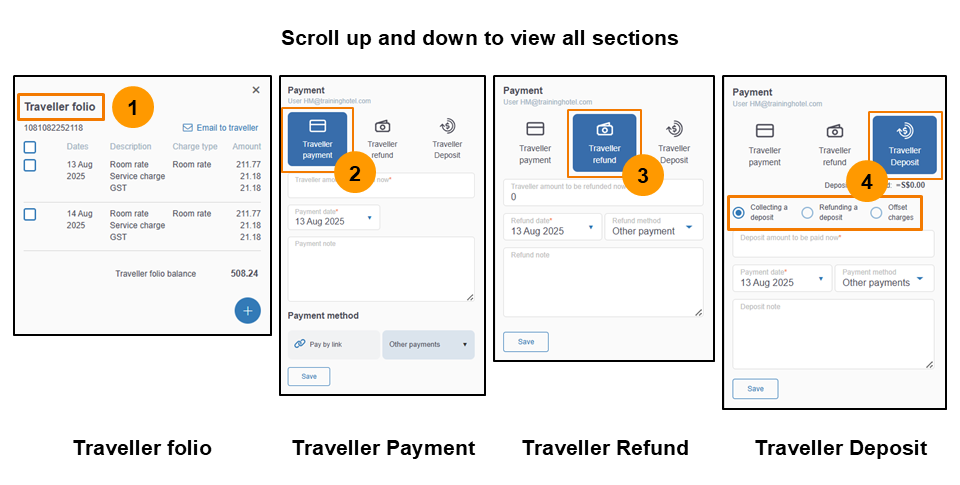
Note that traveller payments can be updated at any time, regardless of the booking status. However, the prompt only appears when bookings are changed from the Confirmed to Complete Check-in status.
View and Update Traveller Folio from the Booking Card
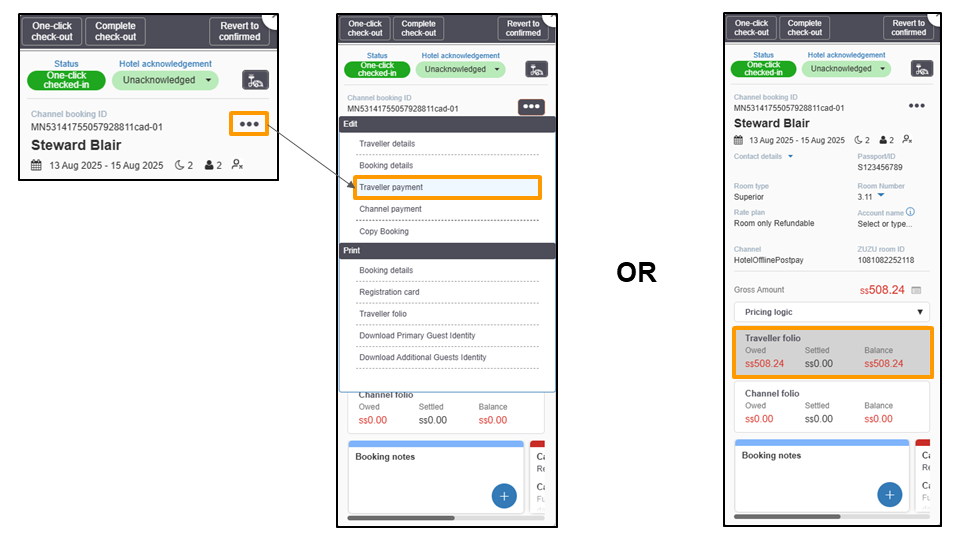
To view and/or update the traveller folio:
- Click the three dots on the booking card and choose "Traveller Payment" under the Edit section in the dropdown menu.
- Simply click the traveller folio box on the main booking card.
Settling the Traveller Folio Balance
Before the guest checks out, hotels must ensure that all charges are settled, as indicated by a traveller folio balance of 0.00. HMS streamlines the settlement process through Pay by Link, Pay by Card, and other payment methods available at the property.
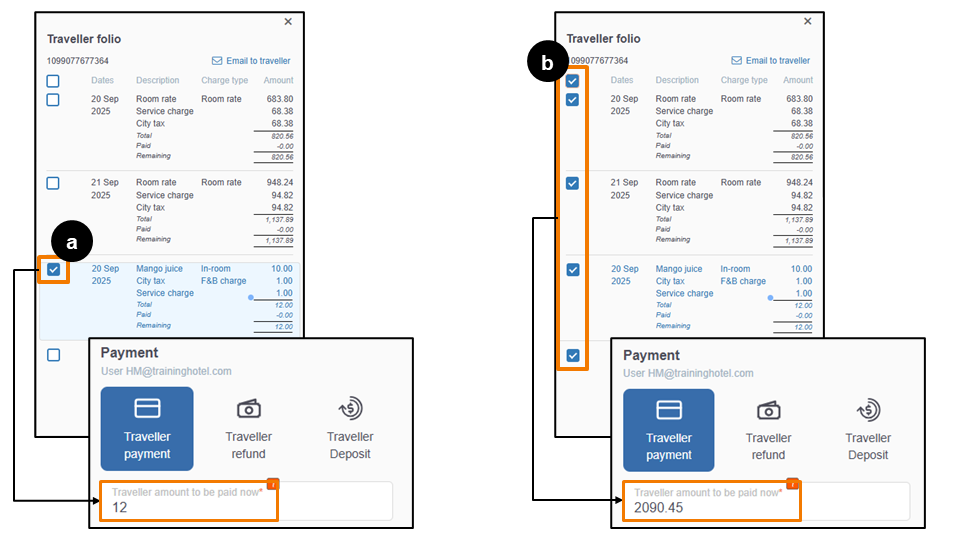
When collecting payments, choose between settling for specific charges or all listed charges:
- To collect payment for specific charges, select the checkboxes next to the relevant items.
- To collect payment for all listed charges, tick the checkbox at the top of the list.
Selecting any charges instantly updates the Traveller amount to be paid now. If users tick the upper checkbox to select all charges, the amount shown matches the Traveller Folio Balance.
1) Collect payments with Pay by Link
Pay by Link is a payment collection method that allows guests to complete payment by clicking a payment link sent to their email or scanning a QR code displayed on the booking card.
How to use Pay by Link?
1. On the traveller folio section, click the relevant checkbox(es) to be paid via Pay by Link, and then the total amount will automatically be calculated in the Traveller amount to be paid now field under the Payment section. The Payment note is optional, fill it if necessary.
2. Select Pay by Link as the payment method, then click Next.
3. Ensure the guest's contact information* (Email address, Phone number, and guest residence country) is correct before clicking Confirm.
*❗The Contact Information box is prefilled with the traveller's details from the booking card. If the email and phone number are still missing or need updating, click Edit, update the information, and then click Update.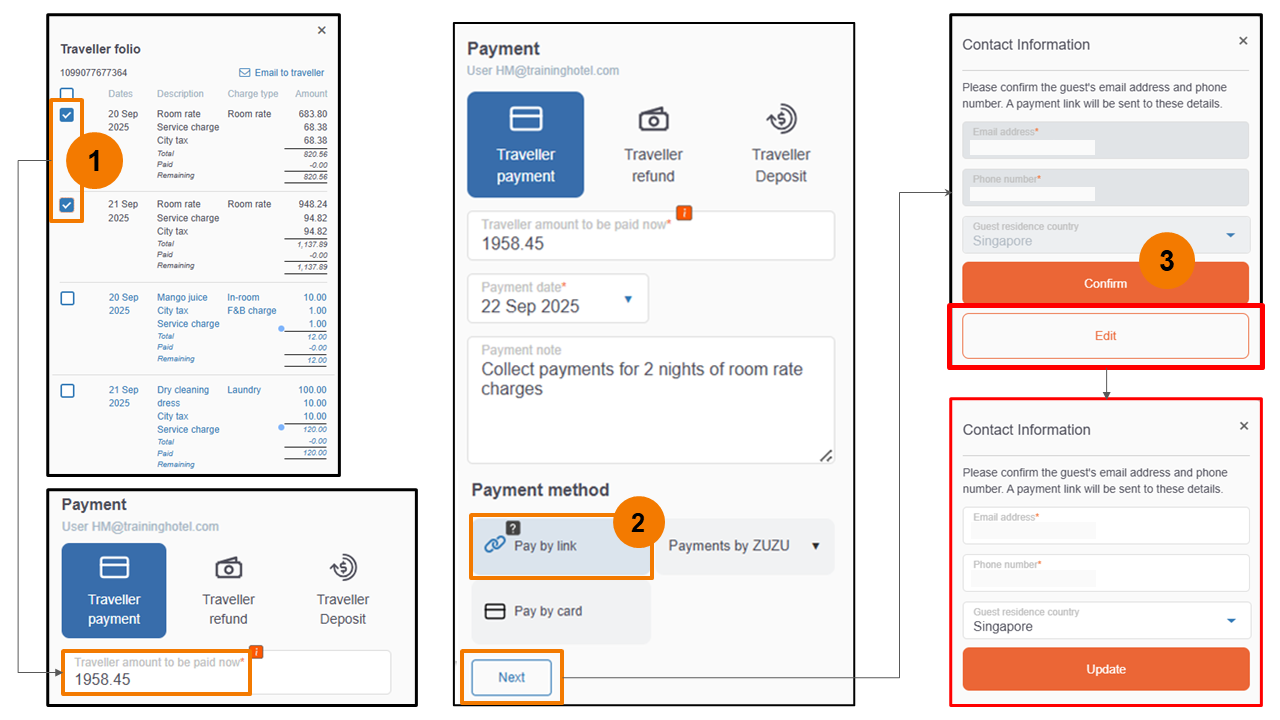
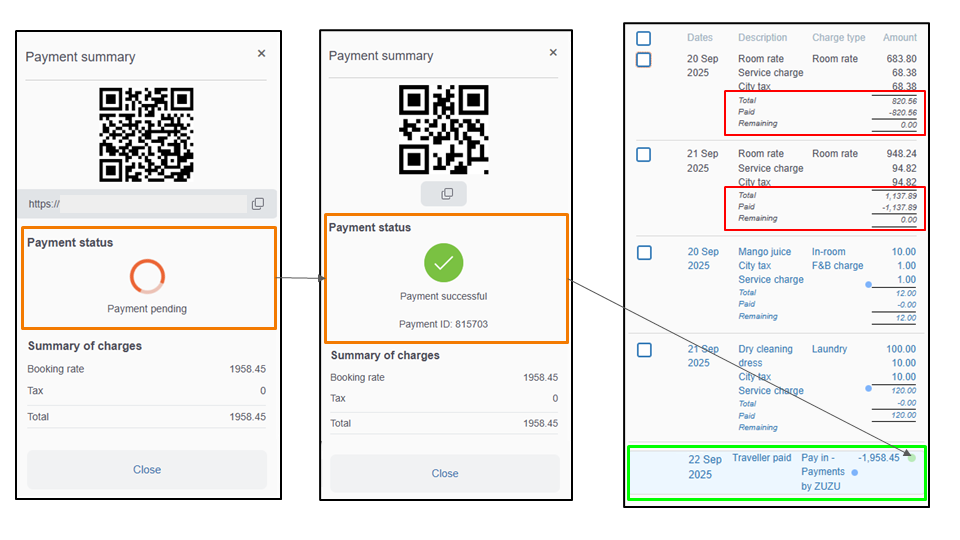
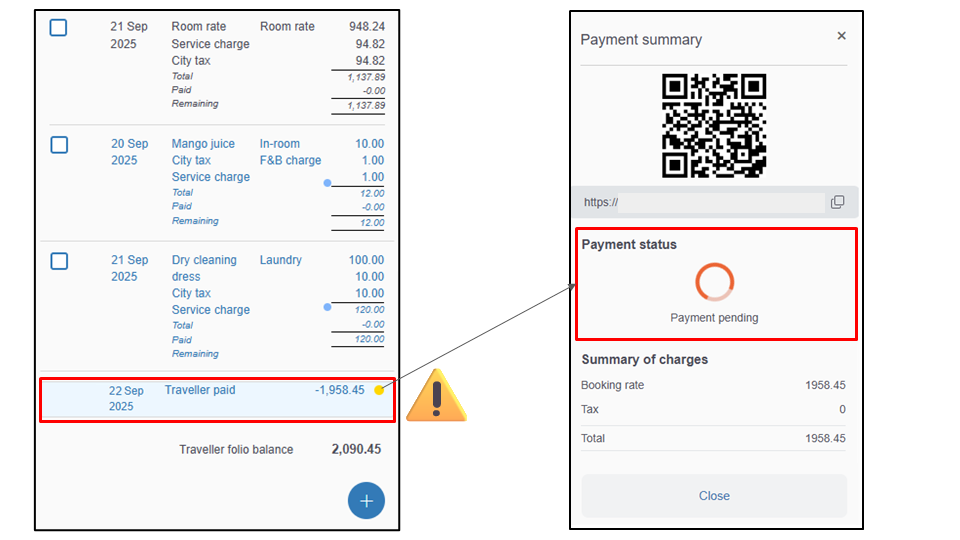
The system will send a link to the guest, prompting them to complete the payment using their preferred payment method. Guests can also complete the payment by scanning the QR code shown in the Payment Summary. During this process, the Payment summary on the booking card displays the QR code, payment link, and current payment status (Pending or Successful).
Once the guest completes the payment, the status changes to “Payment successful”, and the Traveller Folio Balance updates automatically. Payment made via Pay by Link is indicated as ‘Pay in – Payments by ZUZU’. After the guest completes payments for the selected charges, the description and amount will show ‘Remaining: 0.00’, indicating that the charges have been paid.
2) Collect payments with Pay by Card
Pay by Card is a payment collection method that allows properties without a card machine on-site to accept card payments. The HMS system securely stores card details, which are available for use only when there is an outstanding amount to be paid. This feature eliminates repeated requests and re-entry of card details.
How to use Pay by Card?
1. On the traveller folio section, click the relevant checkbox(es) to be paid via Pay by Card, and then the total amount will automatically be calculated in the Traveller amount to be paid now field under the Payment section. The Payment note is optional, fill it if necessary.
2. Select Pay by Card as the payment method, then click Next.
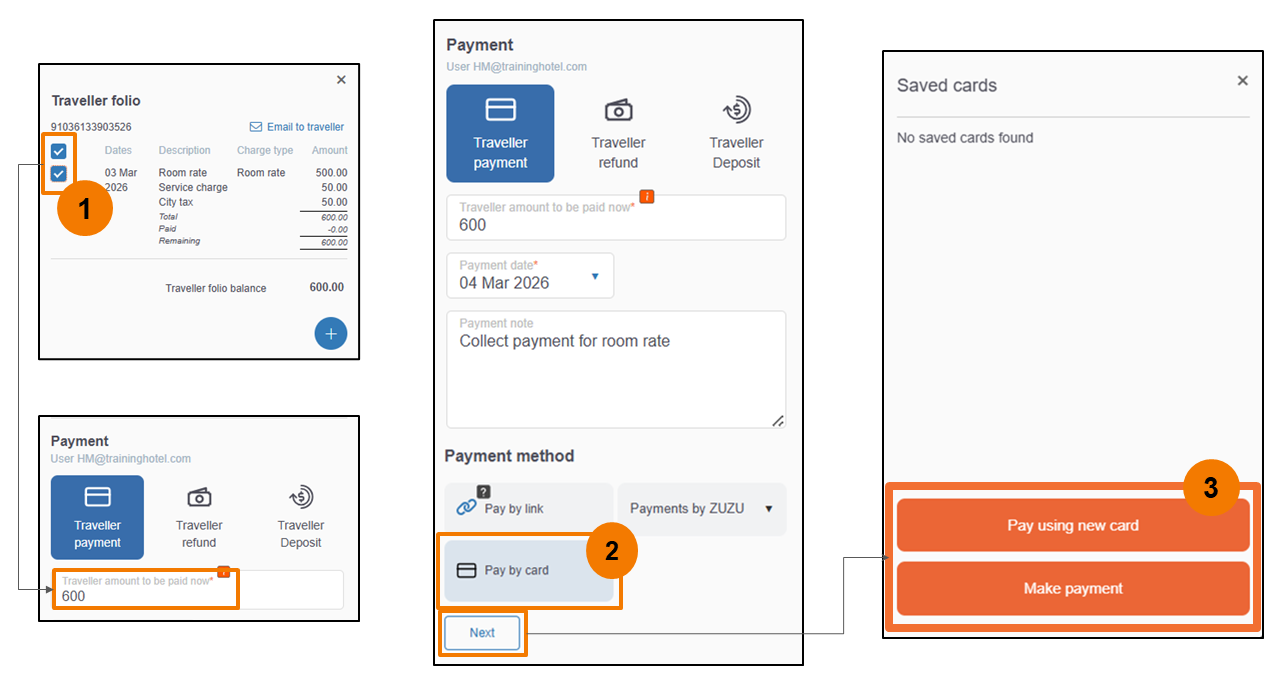
3. There are two options: Pay using new card or Make payment.
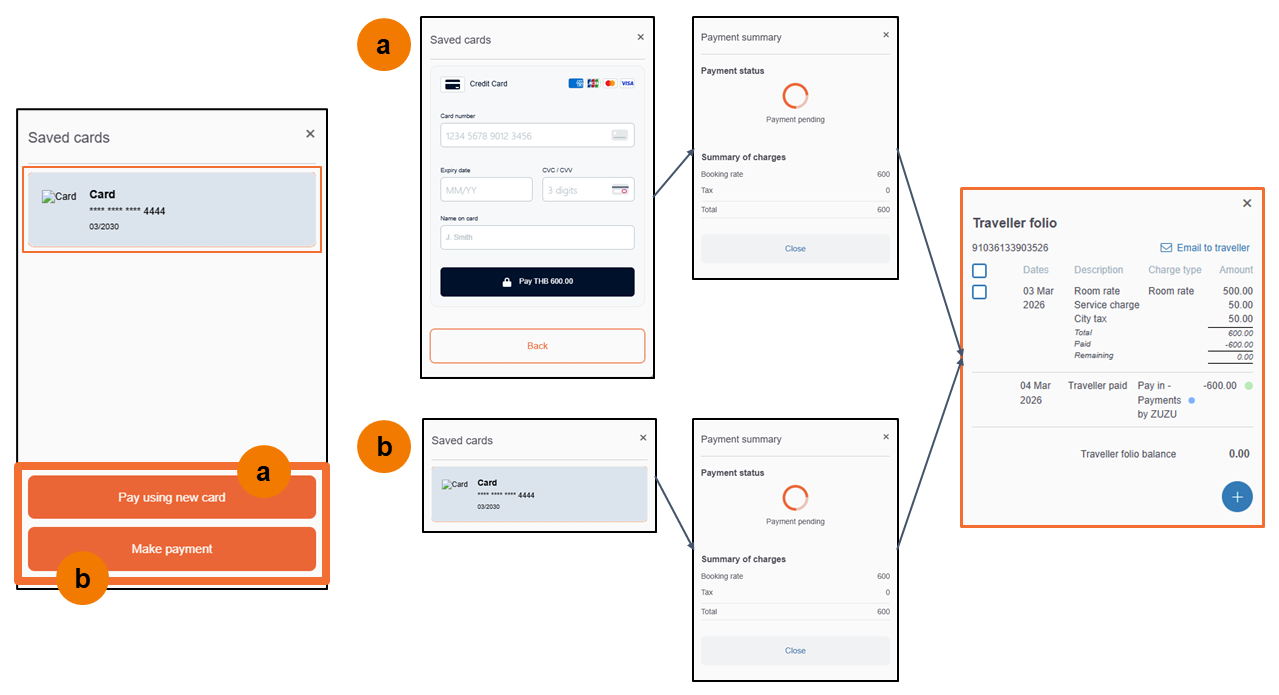
- Pay using new card: Select this option if no card details have been saved for the booking. Enter the required card details (card number, expiry date, CVC/CVV, and name on card), then click Pay to process the payment.
- Make payment: Select this option only if card details have already been saved for the booking.
If the card payment process is successful, the Traveller Folio balance, description, and amount are updated automatically, and payment with Pay by card is indicated as 'Pay in – Payments by ZUZU'.
3) Record payments from other methods accepted at the property
Payments collected from the guests through other on-site payment methods, such as cash, e-wallet, bank transfer, should also be recorded in HMS for accurate reporting.
How to record other payment methods?
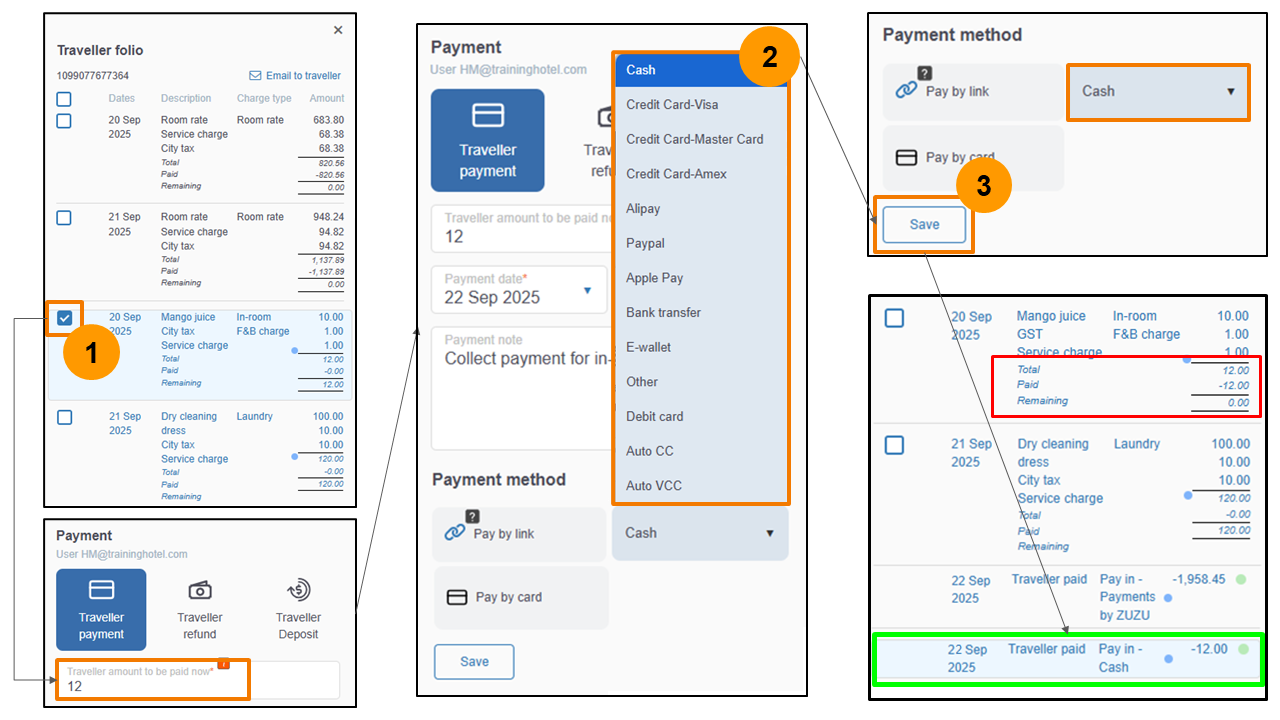
1. On the traveller folio section, select the relevant checkbox(es) for the charges collected via accepted payment methods at the property, then the total amount will automatically be calculated in the Traveller amount to be paid now field under the Payment section. The Payment note is optional, fill it if necessary.
2. Select Other Payments as the payment method. From the dropdown menu, select a payment method used when collecting the payment.
3. Click Save to record the payment. The payment record will be marked with Traveller paid as the description and Pay in – (payment method used) as the charge type.
For example, if the guest paid in cash, it will display as Pay in – Cash.
4) Split payments
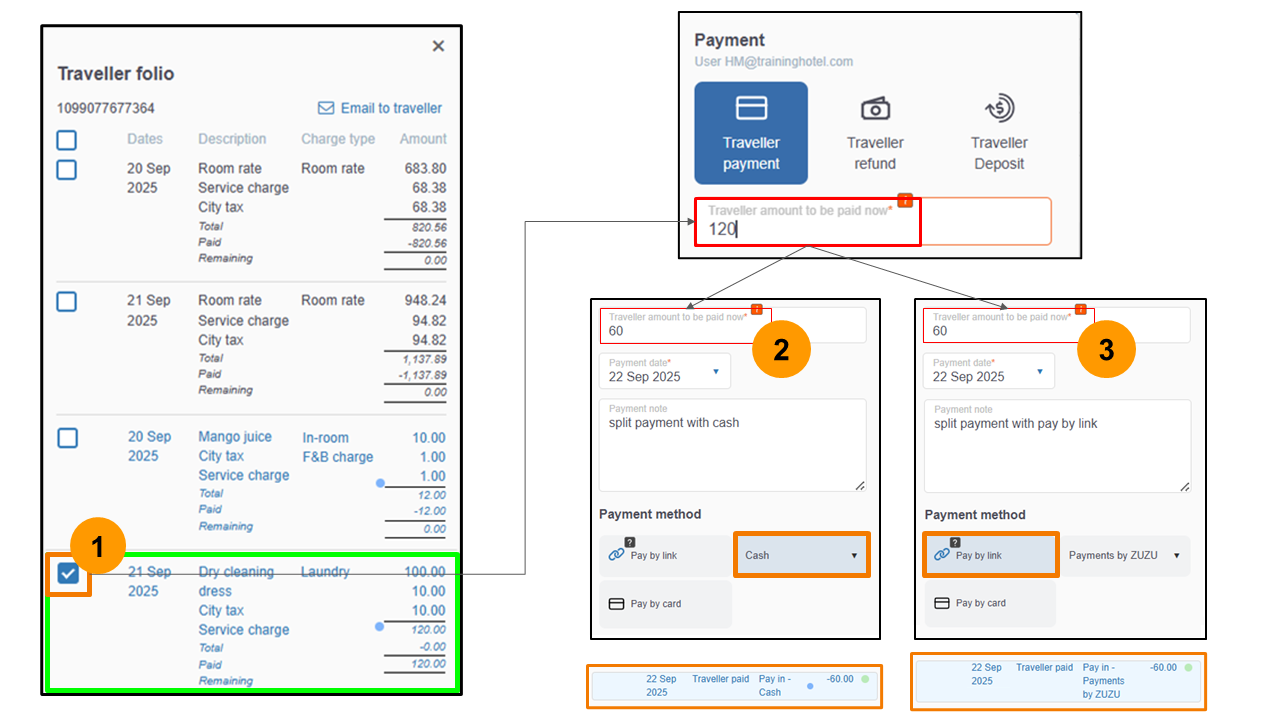
Guests may request to settle a single charge using different payment methods. For example, a guest may choose to pay 50% of the total amount of the selected charge in cash and the remaining 50% via Pay by Link.
1. Select the charge box that will be settled with different payment methods, and then the amount will appear in the Traveller amount to be paid now field under the Payment section.
2. In the Traveller amount to be paid now, manually adjust the amount.
For example: For a total amount of 120, change the amount to 60, select Cash as the payment method, and add a Payment note if necessary. Click Save to record the payment in HMS.
3. After recording the portion of the payment paid with cash, the remaining 60 must be paid via Pay by Link. Repeat step 1, and the Traveller amount to be paid now will show 60; this time, select Pay by Link as the payment method. Click Next, then make sure that the payment is successfully completed, as indicated by a circular light green icon next to the paid amount.
Payment Pending
The circular icon colours next to the amount indicate the payment statuses. Light green indicates that the payment is successful, and yellow indicates that the payment is still pending or has not been completed yet by the guest. If it is still yellow, hotels should check with the guest, as the payment remains unpaid.
Once all outstanding payments have been successfully settled, remember to update the booking status to Complete Check-out when the guest checks out. All payments recorded in the HMS (including Traveller Payment, Refund, and Deposit) are also reflected in the Cashier Report. The report lists all forms of payments such as Direct Payments between Traveller and Hotel and Payments To and From Channels.
ⓘ Coming soon!
Additional functionalities (offsetting charges using traveller deposits and processing traveller refunds) will be available in HMS.
Other related articles:
- Managing charges in the Traveller Folio
- Managing traveller payments and charges in the ZUZU Mobile App
Can't find your answer? Contact the ZUZU Helpline
Tags: pay-at-hotel methods, on-site payment collection, booking card, traveller payment methods, guest payments, settle payments, collect payments, update booking status, traveller folio balance, unpaid amount, outstanding balance, pay by link, pay by card, card machine, bank transfer, e-wallet, non-cash payments, traveller charges, charges checkboxes, auto-filled amount in the traveller amount to be paid now, payment link, scan QR code for payment, payment status in payment summary, split payments, partial payments, record payments collected at the property, pending payment, payment error, check-out with balanced bill, cashier report