
Managing reservations for a group of guests requires a transparent and well-organised system to ensure that bookings are handled properly. Hotels need to clearly manage and track the number of rooms booked, guests' special requests, and any additional charges per room.
Group Booking is a feature designed to help hotels manage group guests under a single group booking. By grouping multiple reservations into a group booking, hotels get a clear, organised view of all related bookings, which simplifies group booking management. This feature is ideal for a variety of group reservations, such as tour groups, party groups, or special events. Group Bookings feature streamlines multiple bookings management, from creating a group booking, flexibly managing which booking cards are included or excluded, to quickly identifying reservations that belong to a group within the HMS.
Identify a Group Booking
Multiple booking cards grouped together in a group booking are meant for clearer visibility and quick identification. To easily identify which bookings belong to a specific group: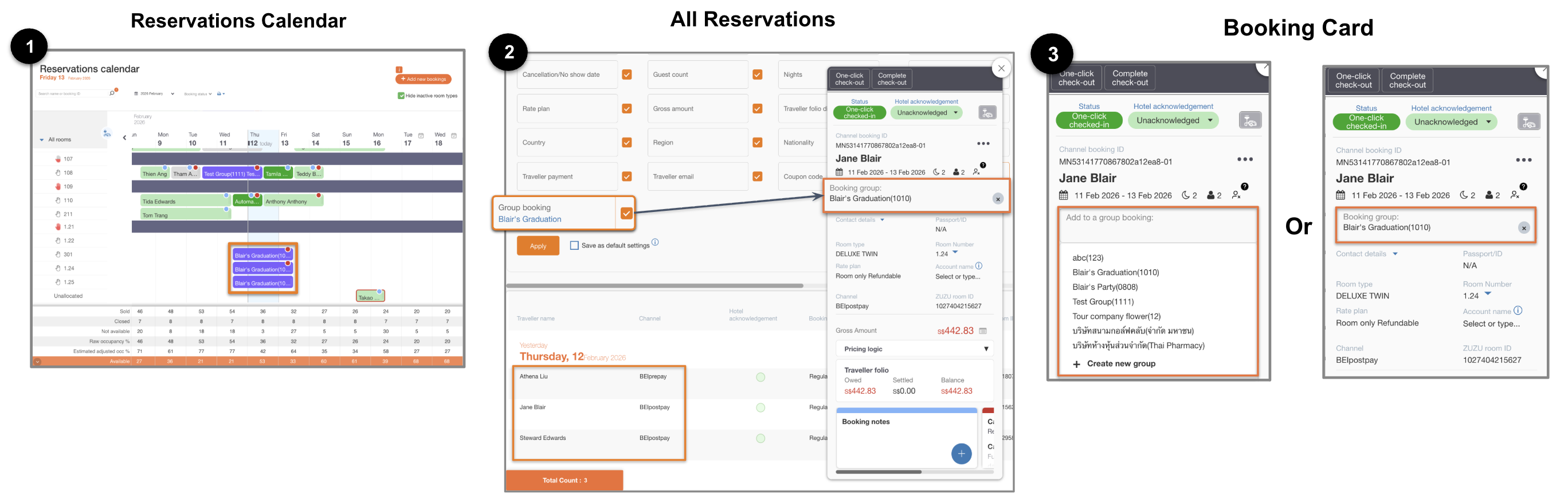
From the Reservations Calendar: On the calendar view, booking cards that are part of a group booking are highlighted in purple.
From the All Reservations: To display the bookings that belong to a specific group booking, use the Columns and Filters feature to filter the list:
Click Columns and Filters, look for the ‘Group Booking’ field, and make sure its checkbox is selected so it appears in the booking list later.
Enter the group name or code.
Click Apply, and the list will only include bookings from that group.
From the Booking Cards: Users can also check if a booking belongs to a group directly within the booking card. In the middle section of a booking card, just below the check-in and check-out dates, look for the field labeled either ‘Group booking:’ (for a booking that is already included in a group booking) or ‘Add to a group booking:’ (for a booking that is not part of a group booking).
Create a New Group Booking
Users can choose to create a group booking from:
From the Reservations Calendar and the All Reservations: On both pages, users can click “Add new booking” at the top corner.
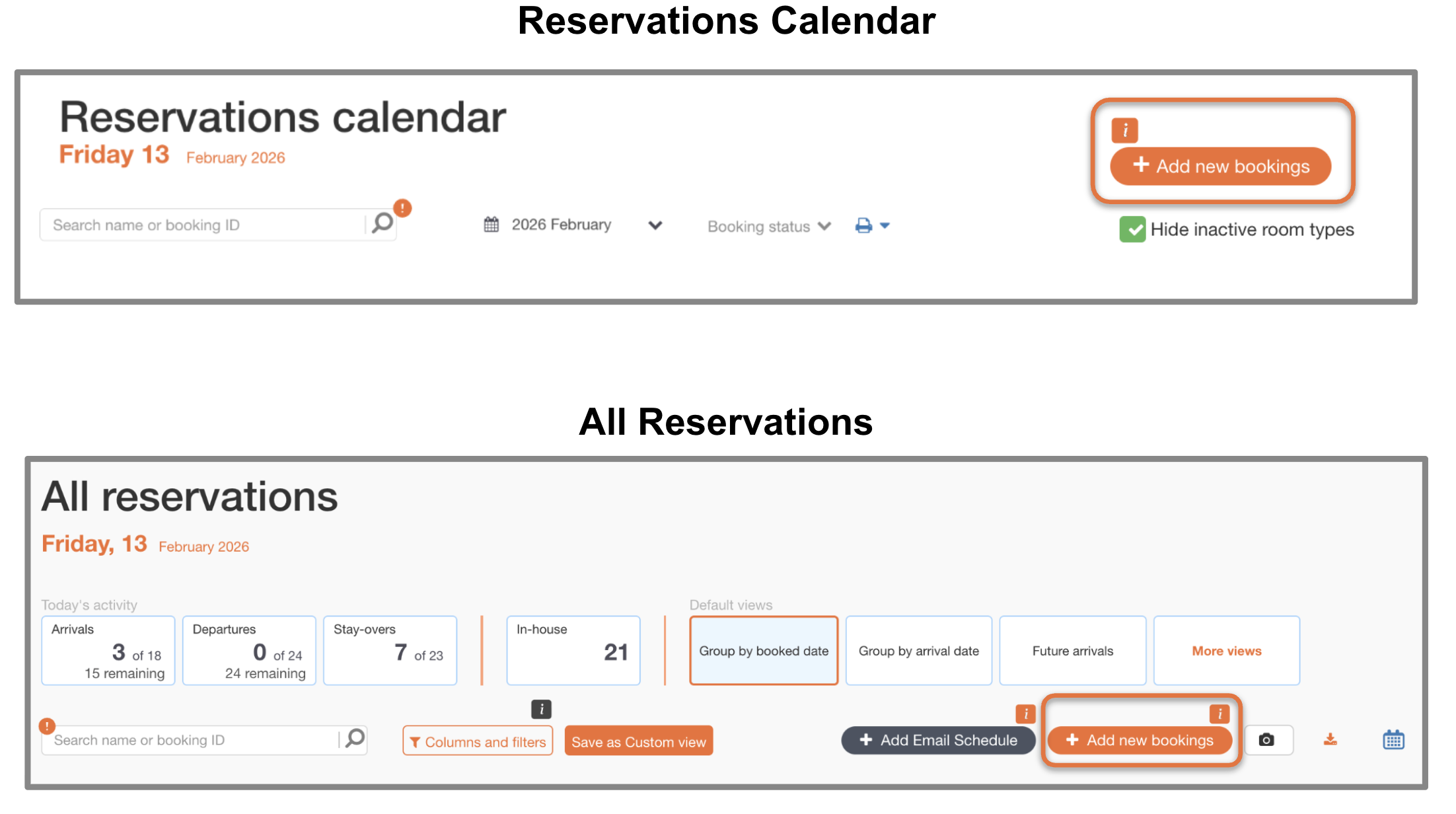
After clicking “Add new booking” complete the “manual booking entry” as follows:Tick the Group Booking checkbox
Search and select the existing group name on the “Select group” field.
Or click “Create New Group” if the group does not yet exist
Fill in the required booking details.
Click “Create Booking”.
Once created, the booking will be identified as a group booking in the Reservations Calendar or the All Reservations pages. The group booking can be edited by opening the booking card from both pages.
From the Booking Cards, users can complete the group booking entry as follows:
Create a new manual booking or choose an existing booking from the Reservations Calendar or the All Reservations pages.
Open the traveller’s booking card.
Fill in the “Add to a group booking” box with an existing group name.
Or click “Create New Group” if the group does not yet exist
The booking will be identified as a group booking in the Reservations Calendar or the All Reservations pages.
Users can assign, edit, or remove a booking from a group through either the Manual Booking Entry form or directly from the Booking Card:
Fill in the group booking field (in the manual booking entry or the booking card) with the desired existing group.
Click “Create new group” If you want to create a new one or cannot find a group name.
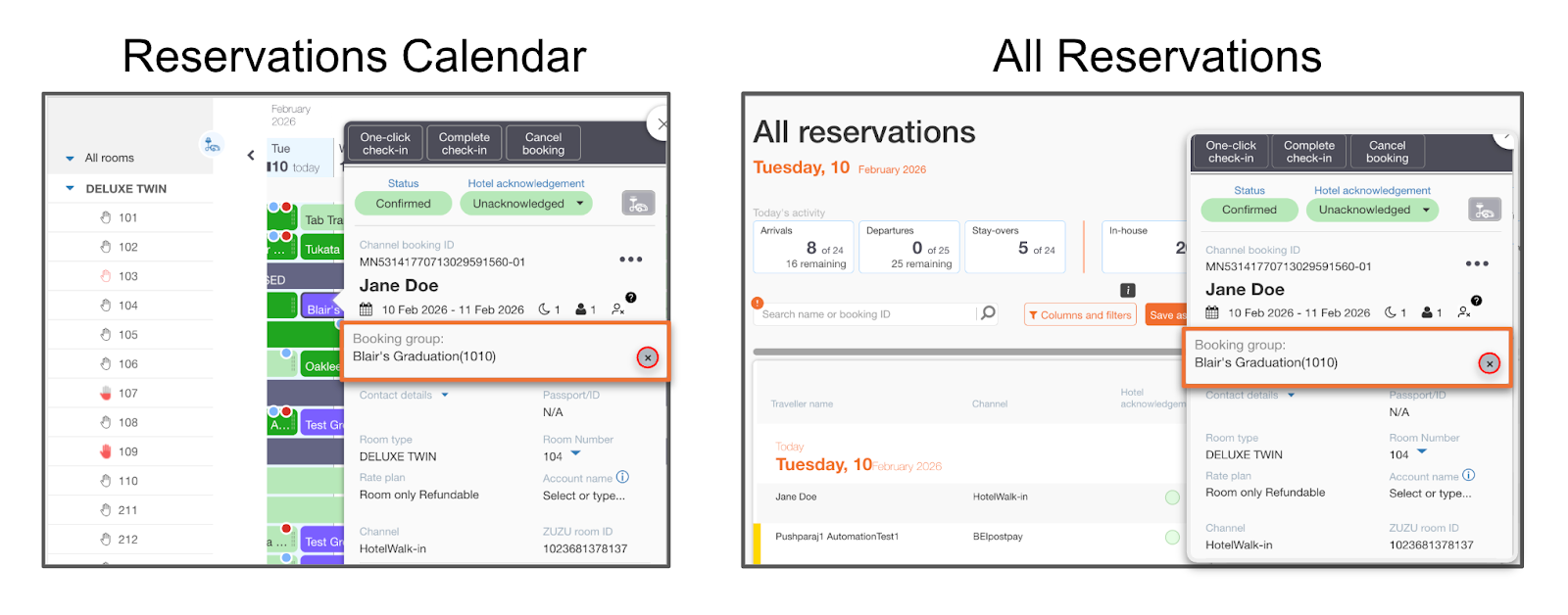
If you want to remove the booking from a group booking, open the booking card and click the “╳” icon under the group booking field.
Can't find your answer? Contact the ZUZU Helpline
Tags: Group Booking, create group booking, manage group booking, booking card, all reservations, reservations calendar, edit group booking, create new group, assign new group, identify new group, manual booking, select group booking, group booking filter, search group name