
Support and assistance for a hotel’s daily operations should be fast and simple. The ZUZU Communication Centre is a messaging platform within HMS that allows hotels to communicate with the ZUZU Support Team directly, get quick answers to HMS-related questions, and create tickets for more complex issues that require further assistance.
How can I find the ZUZU Communication Centre?
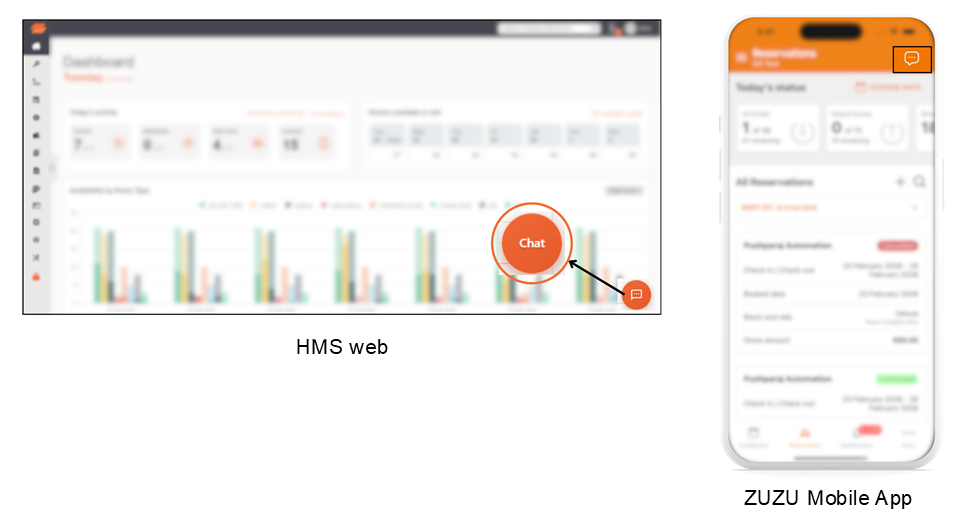
ZUZU Communication Centre is available on both HMS web and mobile app:
- HMS: The CHAT button is located at the bottom-right side of the page and is available on all HMS pages.
- ZUZU Mobile App: The CHAT button is located at the top-right side of the page and is available on all tabs in the ZUZU app.
How to use the ZUZU Communication Centre?
After clicking the orange CHAT icon, a chat panel will appear on the right side of the page. Users can expand the chat box (Support Channel) by clicking the orange maximize button.
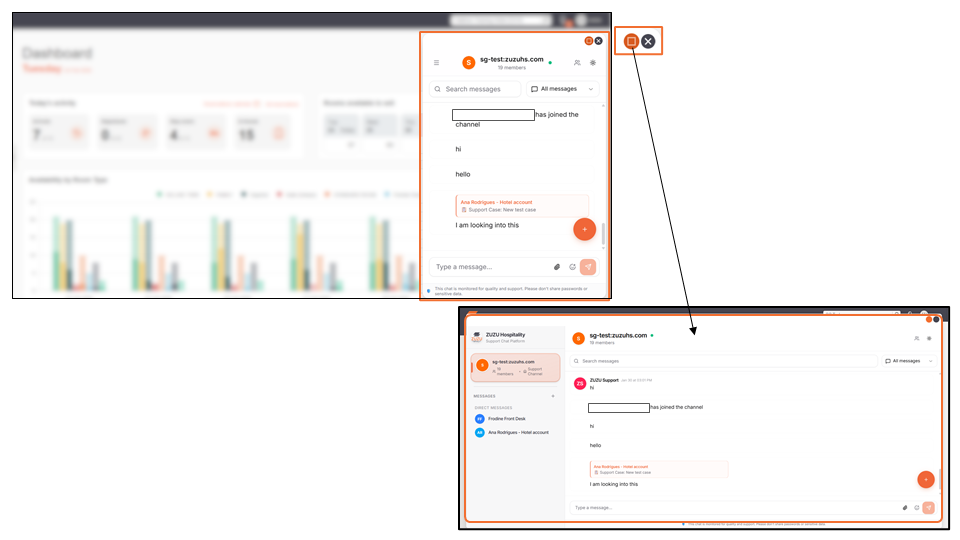
1) Send a message: Hotels can directly communicate with the ZUZU Support Team through text. They can also send supporting files, including documents, videos, and audio files, through the attachment upload icon.
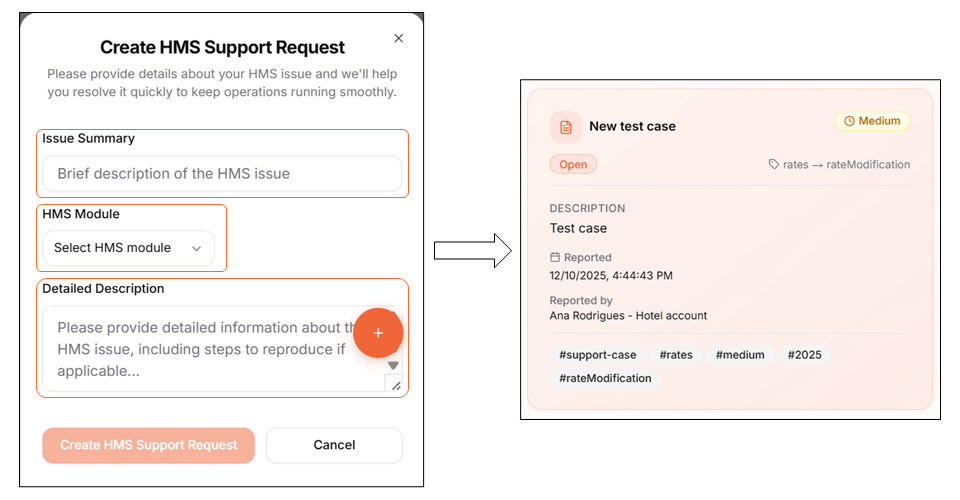
2) Create an HMS Support Request: For complex cases which hotels require further assistance with. Click the “+” button in the Support Channel chat box to open the Create HMS Support Request form and fill up all mandatory fields: Issue summary, HMS Module (type of issue), and Detailed description.
After filling all the information needed, click Create HMS Support Request to submit the request to the ZUZU Support Team.
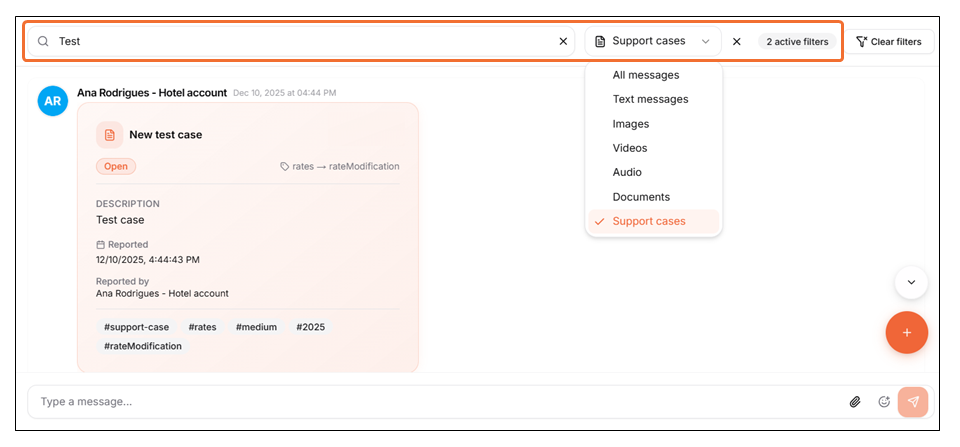
3) Search and Filter messages: To search for a specific message, type a keyword into the Search messages field. Hotels can further refine your results by clicking the “All messages” dropdown and selecting the relevant message or file type.
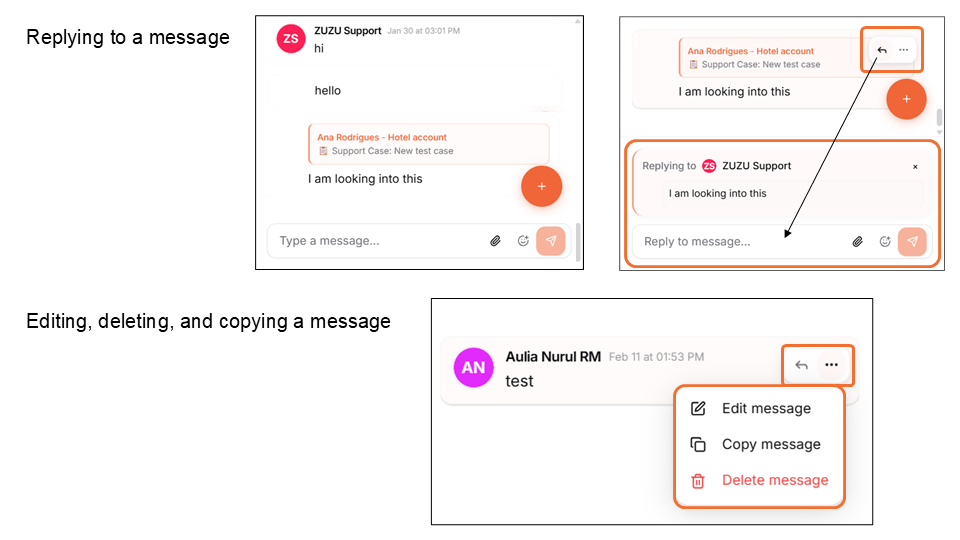
4) Reply, edit, delete, and copy messages:
- Replying to a message: Hover over the message and click the Reply icon (left-facing arrow). Type your response in the Reply to message field, then click the orange square button with the send icon to send your message.
- Editing a message: Hover over the message, click the three-dot icon, then select Edit message. Update the message and click Save.
- Deleting a message: Hover over the message, click the three-dot icon, then select Delete message. Click OK to confirm. Users can only delete their own messages.
- Copying a message: Hover over the message, click the three-dot icon, then select Copy message. The message will be copied to your clipboard, and a confirmation pop-up will appear.
Other information in the ZUZU Communication Centre
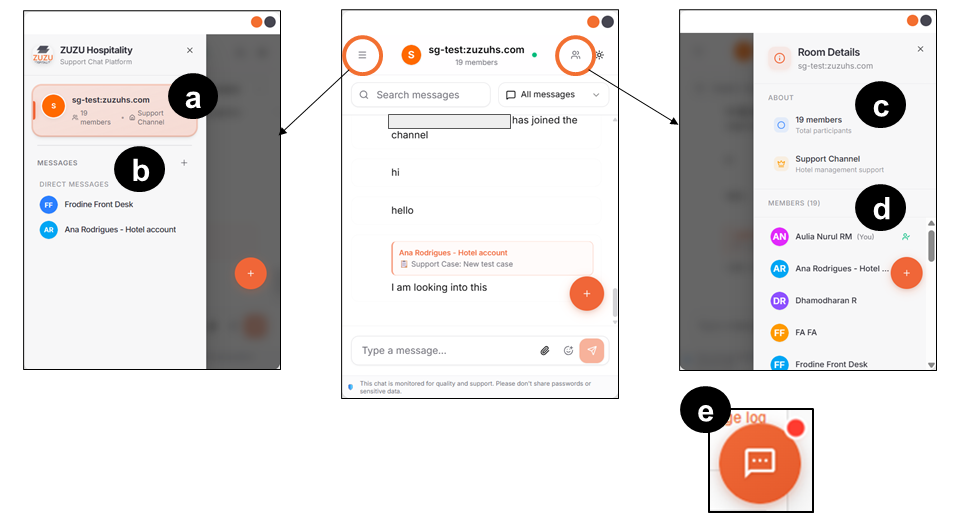
- Support Channel: Each property has a dedicated group chat used for communication among hotels and with the ZUZU team. The number of users in the group is displayed in this section.
- Messages & Direct Messages: Users can communicate with other users within the same property using one of the following methods:
- Click the three-line icon on the top-left of the panel, then click “+” that’s in line with Messages. Then, the Start New Message box will appear. Type a name or scroll down to find another user. Click the three-dot icon next to the user’s name, then select Send Direct Message.
- Click the user icon on the top-right, then scroll down the Members section to find another user. Click the three-dot icon next to the user’s name, then select Send Direct Message. The Direct Messages section displays a list of previous conversation history.
- About: Displays the total number of users included in the group.
- Members: The list of other users within the same property. Users can also start a new chat from this section.
- Activity notification is marked with a red dot on the ZUZU Communication button.
Can't find your answer? Contact the ZUZU Helpline
tags: ZUZU Communication Centre, messaging platform in HMS, chat with ZUZU support team, direct chat and support, raise complex issue escalations, creating HMS support request ticket, daily communication for hotels